Last night I spent a significant amount of time working on a Windows XP Service Pack 3 machine. The symptom was that when you went to do a Windows Update or Microsoft Update you would ultimately get an error code: 0x8007041d
I ultimately learned that error code 0x8007041d means that the Automatic Update service cannot start. In fact, to save time, I ultimately just kept trying to start the "Automatic Update" service after each thing I tried, and once it finally started, I knew it was fixed and then Windows Update worked normally.
I tried a multitude of things and I wanted to list them all here, because each of the steps seem to have varying degrees of success for others in correcting this issue.
You do not have to do these in any particular order, it is just the order in which I did it until I found the ultimate cure.
[STEP 1]
Try the Microsoft Fix It:
http://support.microsoft.com/kb/971058
[STEP 2]
Download the Windows Update Agent installer to the root of your C: drive.
http://download.windowsupdate.com/WindowsUpdate/redist/standalone/7.4.7600.226/WindowsUpdateAgent30-x86.exe
Then run this command from a command prompt:
WindowsUpdateAgent30-x86.exe /wuforce
In my case, the above resulted in the same error code of 0x8007041d.
[STEP 3]
Create a batch file and run these commands to re-register DLL files:
regsvr32.exe qmgrprxy.dll /u
regsvr32.exe qmgr.dll /u
regsvr32 wuaueng.dll /u
regsvr32 wuapi.dll /u
regsvr32 wups.dll /u
regsvr32 wups2.dll /u
regsvr32 wuweb.dll /u
regsvr32.exe qmgrprxy.dll
regsvr32.exe qmgr.dll
regsvr32 wuaueng.dll
regsvr32 wuapi.dll
regsvr32 wups.dll
regsvr32 wups2.dll
regsvr32 wuweb.dll
[STEP 4]
Delete a folder called wups.dll which is found here:
C:\WINDOWS\system32\SoftwareDistribution\Setup\ServiceStartup\
(It will be re-created when you attempt to run Windows Update again)
[STEP 5 - My Ultimate Fix]
This next command will require the Windows CD. In my case, I copied the contents of the i386 folder from a Windows XP SP3 CD to the root of the C: drive. Then when prompted, point to the C:\i386\ folder.
Run this command:
%SystemRoot%\System32\rundll32.exe setupapi,InstallHinfSection DefaultInstall 132 %SystemRoot%\inf\au.inf
Hoping one of these will help someone else. This was a very aggravating problem for me.
Tuesday, August 20, 2013

Sunday, February 10, 2013
Clicking an Evernote Link in Outlook causes a Security Notice
I love Evernote. It has made me and my team extremely productive. Especially now that we are using Evernote Business.
We often email each other links to particular Notes. But in Outlook 2010 (and Outlook 2007) it is very annoying when you click on an Evernote hyperlink within the email as you will get this Microsoft Outlook Security Notice:
 I began looking for a way to stop this. I did find how you could disable the Security Notices altogether, but I just wanted to stop it for Evernote links.
I found part of my answer in a Microsoft Knowledgebase article:
http://support.microsoft.com/kb/925757
In that article look for the section titled "How to enable or disable hyperlink warnings per protocol".
It says to look for a registry key called:
HKEY_CURRENT_USER\Software\Policies\Microsoft\Office\xx.0\Common\Security\Trusted Protocols\All Applications
My Windows 7 machine running Office 2010 only had this:
HKEY_CURRENT_USER\Software\Policies\Microsoft\
So I had to create the rest by right-clicking each leg of the tree and adding a new key. Note that on the last entry there is a colon after evernote.

Once these registry changes were made, it immediately began to work. Now when I click an Evernote hyperlink in Outlook it opens Evernote to the correct note without that nagging message.
As always, I'm hoping this will help someone else.
We often email each other links to particular Notes. But in Outlook 2010 (and Outlook 2007) it is very annoying when you click on an Evernote hyperlink within the email as you will get this Microsoft Outlook Security Notice:

I found part of my answer in a Microsoft Knowledgebase article:
http://support.microsoft.com/kb/925757
In that article look for the section titled "How to enable or disable hyperlink warnings per protocol".
It says to look for a registry key called:
HKEY_CURRENT_USER\Software\Policies\Microsoft\Office\xx.0\Common\Security\Trusted Protocols\All Applications
My Windows 7 machine running Office 2010 only had this:
HKEY_CURRENT_USER\Software\Policies\Microsoft\
So I had to create the rest by right-clicking each leg of the tree and adding a new key. Note that on the last entry there is a colon after evernote.
Office\14.0\Common\Security\Trusted Protocols\All Applications\evernote:
Once these registry changes were made, it immediately began to work. Now when I click an Evernote hyperlink in Outlook it opens Evernote to the correct note without that nagging message.
As always, I'm hoping this will help someone else.
Sunday, January 27, 2013
Getting Pictures out of Go SMS Pro
I'm writing this in hopes that it will help someone else. I have an Android phone (HTC Evo 4G LTE) and I love using Go SMS Pro as my default SMS Text Messaging app.
My girlfriend's daughter recently had a beautiful baby girl and has been sending me lots of great photos via SMS that she takes on her iPhone.
As they come in I faithfully save each one, but it saves the pictures to: /mnt/sdcard/GOSMS/Downloads
Unfortunately when I connect my phone to my PC and use Google's Picasa to transfer the pictures, it doesn't find them.
Tonight I discovered a very nice (and free) app called QuickPic. It is far better than the stock Android Gallery app. It scans your entire phone (and SD card if you have one) and displays all of the pictures on your phone. I even found pictures I didn't know I had.
After a few minutes I quickly figured out how to use QuickPic to move all photos from the GoSMS Downloads folder to the folder where I have set the Android camera to store its photos (the camera roll if you will) /mnt/sdcard/ext_sd/DCIM/100MEDIA
You also can "copy" pictures from one folder to another, not just move them. Another feature I really like about QuickPic is that for each picture you can choose details and quickly see where the picture is stored on your phone, the size, the resolution, and the date-time stamp.
I will be using QuickPic instead of the built-in Gallery app from here on.
My girlfriend's daughter recently had a beautiful baby girl and has been sending me lots of great photos via SMS that she takes on her iPhone.
As they come in I faithfully save each one, but it saves the pictures to: /mnt/sdcard/GOSMS/Downloads
Unfortunately when I connect my phone to my PC and use Google's Picasa to transfer the pictures, it doesn't find them.
Tonight I discovered a very nice (and free) app called QuickPic. It is far better than the stock Android Gallery app. It scans your entire phone (and SD card if you have one) and displays all of the pictures on your phone. I even found pictures I didn't know I had.
After a few minutes I quickly figured out how to use QuickPic to move all photos from the GoSMS Downloads folder to the folder where I have set the Android camera to store its photos (the camera roll if you will) /mnt/sdcard/ext_sd/DCIM/100MEDIA
You also can "copy" pictures from one folder to another, not just move them. Another feature I really like about QuickPic is that for each picture you can choose details and quickly see where the picture is stored on your phone, the size, the resolution, and the date-time stamp.
I will be using QuickPic instead of the built-in Gallery app from here on.
Thursday, July 19, 2012
VMware vSphere Client - Error 503
I posted about this same error message sometime back but now I have discovered an easier and faster way to resolve it. Not fix it permanently, mind you, but at least make it so you can connect to your vSphere server using the VMware vSphere Client.
The Problem
When you are trying to logon to your vSphere 5 server using the VMware vSphere Client you get an error that says, "The remote server returned an error: (503) Server Unavailable".
The Problem
When you are trying to logon to your vSphere 5 server using the VMware vSphere Client you get an error that says, "The remote server returned an error: (503) Server Unavailable".

The Solution
Assuming you have enabled SSH on your vSphere server you can open a Putty session on port 22. After you have connected and logged in as root, issue the command called dcui and this will launch a console session that looks just like you were standing at the server.
Assuming you have enabled SSH on your vSphere server you can open a Putty session on port 22. After you have connected and logged in as root, issue the command called dcui and this will launch a console session that looks just like you were standing at the server.

Click F2 and login as root

Choose Troubleshooting Options from the menu

Choose Restart Management Agents from the menu
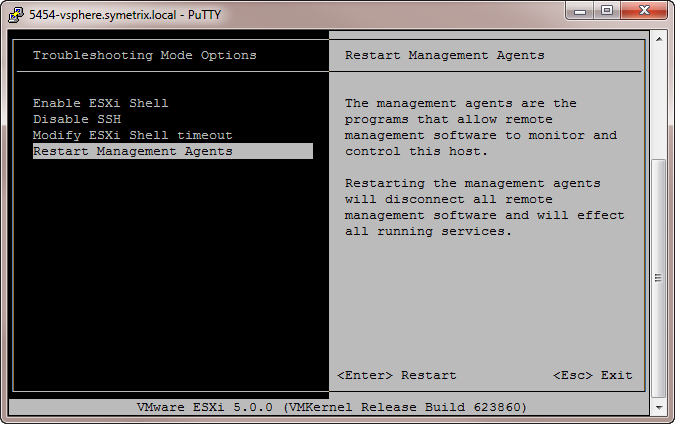
Press F11 to confirm your choice

Once the services are restarted you should now be able to login using the vSphere Client.

There have been times when I've had to restart the Management Agents multiple times before I could finally get the vSphere Client to work. I was hoping this would be resolved with VMware vSphere 5 Update 1, but unfortunately it has not. And this is only occurring for me on one vSphere server whereas we have five others that are behaving fine.
Thursday, June 21, 2012
Google Toolbar on Firefox 13
It's a shame I have to keep playing this cat-and-mouse game to keep my beloved Google Toolbar working in Firefox.
Google, if you're listening, please reconsider this decision and revive the Google Toolbar for Firefox. You provide it for Internet Explorer, what gives?
To understand the context of this post you need to read my previous post:
There I describe how you could edit a configuration file, to make the Google Toolbar work again when upgrading to Firefox 11. This trick also worked for Firefox 12. But then when Firefox 13 came along, I once again lost the Google Toolbar.
You have to first follow the steps in the previous post, but then while you have the install.rdf file open and you changed the
Change this line from this:

To this:

It worked for me, hoping this helps others as well.
Thursday, April 19, 2012
Microsoft Exchange - Mail Store will not mount
Let me start this post by saying I am a complete NOOB when it comes to Microsoft Exchange. I should also say I hate strongly dislike MS Exchange. From an Administrative side it is so unintuitive. I am spoiled rotten by the MDaemon Mail Server; so much easier to troubleshoot issues.
One of my clients contacted me today because their email wasn't working. The server had randomly rebooted overnight and now they cannot send or receive mail and they are getting errors when connecting via Outlook.
While looking through error logs and troubleshooting this issue, here are some of the messages I received:
Open System Manager

I was finally able to fix it with the following command lines. First of all open a CMD prompt and CD to this directory: C:\Program Files\Exchsrvr\bin
Then execute this command:
eseutil /p "C:\Program Files\Exchsrvr\MDBDATA\priv1.edb" - This is the Mailbox Store
and then execute this command:
eseutil /p "C:\Program Files\Exchsrvr\MDBDATA\pub1.edb" - This is the Public Folder Store
After using the above commands I was able to mount the mail stores from the System Manager (above). I also read several people saying, Oh be careful with the /p (recovery) as it could cause issues. Instead try the /r (repair) option; but in my case the /r did no good at all.
Please also refer to these two documents:
As always, hoping this helps someone else. It'll probably be me, because I'll probably forget.
One of my clients contacted me today because their email wasn't working. The server had randomly rebooted overnight and now they cannot send or receive mail and they are getting errors when connecting via Outlook.
While looking through error logs and troubleshooting this issue, here are some of the messages I received:
- Mail store is not available
- exchange store is not mounted
- database files in this store are corrupted
How do you mount the Mail Store?
OK, so how the heck do you mount the mail store? As I said, I'm new at this.Open System Manager
- Click on START
- All Programs
- Microsoft Exchange
- System Manager
- Go to Servers
- The name of your server
- First Storage Group

It will not mount - says it is corrupted
In my case both the Mailbox Store and the Public Folder Store were off-line and when I tried to mount them I would get an obscure error. Turns out both of these stores were corrupted.I was finally able to fix it with the following command lines. First of all open a CMD prompt and CD to this directory: C:\Program Files\Exchsrvr\bin
Then execute this command:
eseutil /p "C:\Program Files\Exchsrvr\MDBDATA\priv1.edb" - This is the Mailbox Store
and then execute this command:
eseutil /p "C:\Program Files\Exchsrvr\MDBDATA\pub1.edb" - This is the Public Folder Store
After using the above commands I was able to mount the mail stores from the System Manager (above). I also read several people saying, Oh be careful with the /p (recovery) as it could cause issues. Instead try the /r (repair) option; but in my case the /r did no good at all.
Please also refer to these two documents:
As always, hoping this helps someone else. It'll probably be me, because I'll probably forget.
Wednesday, April 11, 2012
Office 2007 Excel Graph Data Missing on Print Jobs
A customer of mine had an issue with printing a monthly report from Excel that contains charts and graphs. The data on the graph did not show on the print out, but it did show correctly when doing a Print Preview.
In their case, one of the pages contained four graphs on the page. The odd thing is that when you print the worksheet two of the four graphs had data and the other two didn't. This behavior also happened when printing to several different models of printers and even when printing to Adobe PDF.
The other oddity is that this same spreadsheet worked correctly for some of my users, while it didn't for others.
In the end I discovered this issue was isolated to those that had Microsoft Office 2007. Those running Office 2003 were not affected. Further I found this is caused by a Microsoft Patch that was issued in December 2011. Removing this patch (KB2596596) corrected our issue.
This is what the graph looked like when it printed incorrectly:

This is how the graph is supposed to look:

Again, just remove the patch called KB2596596 (see highlighted below)

Note: Some of the machines were running MS Office 2007 Basic Edition and some were running MS Office 2007 Enterprise Edition. Same patch for both.
As always I'm hoping this will help someone else fighting this issue.
In their case, one of the pages contained four graphs on the page. The odd thing is that when you print the worksheet two of the four graphs had data and the other two didn't. This behavior also happened when printing to several different models of printers and even when printing to Adobe PDF.
The other oddity is that this same spreadsheet worked correctly for some of my users, while it didn't for others.
In the end I discovered this issue was isolated to those that had Microsoft Office 2007. Those running Office 2003 were not affected. Further I found this is caused by a Microsoft Patch that was issued in December 2011. Removing this patch (KB2596596) corrected our issue.
This is what the graph looked like when it printed incorrectly:

This is how the graph is supposed to look:

Again, just remove the patch called KB2596596 (see highlighted below)

Note: Some of the machines were running MS Office 2007 Basic Edition and some were running MS Office 2007 Enterprise Edition. Same patch for both.
As always I'm hoping this will help someone else fighting this issue.
Subscribe to:
Posts (Atom)